技术实现:
打印方法通过js原生封装,
框架采用的是vue和elementplus(单纯想实验一下打印方法的可以不用,直接复制下方代码块即可)
实现逻辑:
1.函数入口printHtml,传入对应的参数,节点,缩放比例(可以使百分比或数字 但不能为负)以及覆盖样式。
2.样式设置: 调用 getStyle 函数以获取打印相关的样式,并传入缩放比例和覆盖样式。
3.容器创建: 调用 getContainer 函数,将需要打印的 HTML 内容放入一个新的 DOM 元素(div)添加到文档: 将样式和内容容器添加到 body 中以便于打印。
4.加载图片: 调用 getLoadPromise 函数确保所有图片加载完成后,才触发打印操作。打印完成后清理: 打印完成后,移除添加的样式和内容容器。
封装方法代码如下:
export default function printHtml(
  html: any,
  zoom?: any,
  overrideStyle?: string
) {
  const style = getStyle(zoom, overrideStyle);
  const container = getContainer(html);
  document.body.appendChild(style);
  document.body.appendChild(container);

  getLoadPromise(container).then(() => {
    window.print();
    document.body.removeChild(style);
    document.body.removeChild(container);
  });
}
function getStyle(zoom?: any, overrideStyle?: string) {
  const styleContent =
    `
    #print-container {
      display: none;
      zoom:${zoom ?? "normal"};
    }

    @media print {
        body > :not(.print-container) {
            display: none;
        }
        html,
        body {
            display: block !important;
        }
        body {
          height:auto;
        }
        #print-container {
            display: block;
        }

    }` + overrideStyle;
  const style = document.createElement("style");
  style.innerHTML = styleContent;
  return style;
}
function cleanPrint() {
  const div = document.getElementById("print-container");
  if (!!div) {
    document.querySelector("body")?.removeChild(div);
  }
}
function getContainer(html: any) {
  cleanPrint();
  const container = document.createElement("div");
  container.setAttribute("id", "print-container");
  container.innerHTML = html;
  return container;
}
function getLoadPromise(dom: any) {
  let imgs = dom.querySelectorAll("img");
  imgs = [].slice.call(imgs);

  if (imgs.length === 0) {
    return Promise.resolve();
  }

  let finishedCount = 0;
  return new Promise((resolve) => {
    function check() {
      finishedCount++;
      if (finishedCount === imgs.length) {
        resolve({});
      }
    }
    imgs.forEach((img: any) => {
      img.addEventListener("load", check);
      img.addEventListener("error", check);
    });
  });
}
调用:
具体调用可以参考一下下方的vue代码,我是将打印的内容放入到自己二次封装的弹框中去了
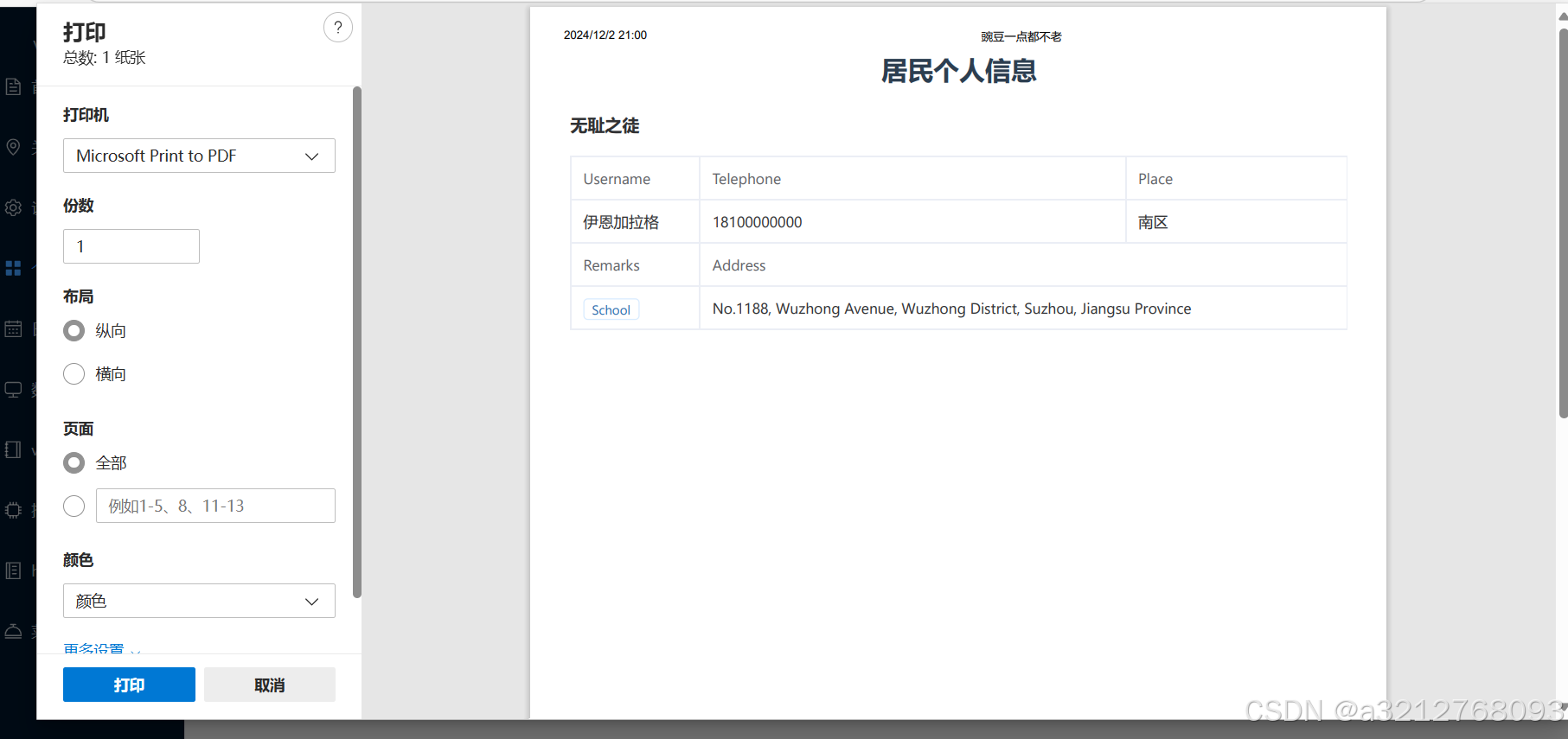
喚起打印推弹框import { ProSelect, ProModal } from "@/components/ProComponents/index"; import { ref } from "vue"; import { ElButton, ElDescriptions, ElDescriptionsItem ,ElTag } from "element-plus"; import printHtml from "@/utils/print"; const visible = ref(false); const myContent: any = { wordBreak: "break-all", padding: "0 30px 50px 30px", color: "#000", fontFamily: "宋体", maxHeight: window.screen.availHeight * 0.6, overflowY: "auto", }; //執行打印 const success = () => { printHtml(window.document.getElementById(`myContent`)?.innerHTML ?? ""); }; const updateSelect = (val: any) => { console.log(val); val.forEach((item: any) => { console.log(item); }); }; .header { text-align: center; font-size: 24px; margin-bottom: 20px; font-weight: bold; } .table { margin: 0 auto; }居民个人信息伊恩加拉格18100000000南区School No.1188, Wuzhong Avenue, Wuzhong District, Suzhou, Jiangsu Province
实现效果如下:
总结
到此这篇关于前端实现打印网页内容解决方案的文章就介绍到这了,更多相关前端打印网页内容内容请搜索IT俱乐部以前的文章或继续浏览下面的相关文章希望大家以后多多支持IT俱乐部!