一、滑动验证码
在现代网络安全体系中,人机验证机制扮演着至关重要的角色。传统的文本验证码由于识别困难、用户体验差等问题逐渐被更先进的验证方式取代。滑动验证码作为一种新型的人机验证手段,凭借其直观的操作体验和良好的安全性,广泛应用于各类网站和应用程序中。本文将详细介绍如何使用 HTML、CSS 和 JavaScript 构建一个完整的滑动验证码系统。
二、效果演示
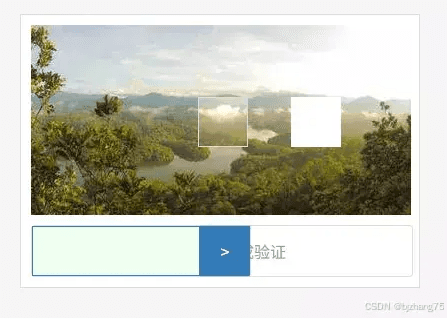
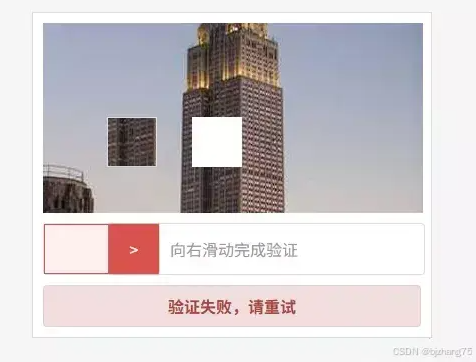
滑动验证码的核心交互流程包括图像加载、拼图生成、用户拖拽和验证判断四个阶段,用户通过拖拽右侧滑块向右移动,使拼图块与背景图像中的缺口对齐,验证成功时显示绿色成功提示,失败则显示红色错误信息并自动重置。

三、系统分析
1、页面结构
整个滑动验证码系统采用简洁清晰的 HTML 结构设计,主要包括图像显示区(verify-img)、滑动控制区(erify-bar-box)和结果显示区(verify-result)三个核心部分。
加载中...向右滑动完成验证>![]()
2、核心功能实现
2.1 初始化流程
主要实现了随机位置生成、图像加载和拼图绘制三个步骤。
async function init() {
  // 显示加载指示器
  showLoading()
  targetX = Math.floor(Math.random() * (imgWidth - bolckSize - 60)) + 30;
  targetY = Math.floor(Math.random() * (imgHeight - bolckSize - 20)) + 10;
  var img = await loadImg(imgUrl+'?'+Math.random());
  // 创建背景画布并绘制带缺口的图像
  var backCanvas = document.createElement('canvas')
  backCanvas.width = imgWidth;
  backCanvas.height = imgHeight;
  var backCtx = backCanvas.getContext('2d');
  backCtx.drawImage(img, 0, 0, 380, 190, 0, 0, imgWidth, imgHeight);
  backCtx.fillStyle = '#FFFFFF';
  backCtx.fillRect(targetX, targetY, 50, 50);
  backImg.src = backCanvas.toDataURL('image/png');
  // 创建拼图块
  var canvas = document.createElement('canvas')
  canvas.width = 50;
  canvas.height = 50;
  var ctx = canvas.getContext('2d');
  ctx.drawImage(img, targetX, targetY, bolckSize, bolckSize, 0, 0, bolckSize, bolckSize)
  blockImg.src = canvas.toDataURL('image/png');
  subBlock.style.top = (-201 + targetY) + 'px';
  // 隐藏加载指示器
  hideLoading()
}
2.2 拖拽交互处理
通过鼠标事件监听实现流畅的拖拽体验,当用户在滑块上按下鼠标并移动时,滑块滑块会随鼠标移动;当用户释放鼠标时,进行位置校验,如果失败滑块会变为红色并平滑的回到起点位置。
// 鼠标按下事件 - 开始拖拽
moveBlock.addEventListener('mousedown', function(e) {
  isDragging = true;
  startX = e.clientX;
  moveBlock.style.backgroundColor = '#337AB7';
  moveBlock.style.color = '#FFFFFF';
  verifyLeftBar.style.border = '1px solid #337AB7';
});
// 鼠标移动事件 - 拖拽过程
document.addEventListener('mousemove', function(e) {
  if (!isDragging) return;
  var newLeft = e.clientX - startX - 2;
  // 限制滑块移动范围
  if (newLeft  maxWidth) newLeft = maxWidth;

  moveBlock.style.left = newLeft + 'px';
  verifyLeftBar.style.width = newLeft + 'px';
  verifyLeftBar.style.border = '1px solid #337AB7';
});
// 鼠标释放事件 - 结束拖拽
document.addEventListener('mouseup', function() {
  if (!isDragging) return;
  isDragging = false;
  var currentPosition = moveBlock.offsetLeft;
  if (Math.abs(currentPosition - targetX)  {
    init()
    moveBlock.style.transition = '';
    verifyLeftBar.style.transition = '';
    moveBlock.style.backgroundColor = '#FFFFFF';
    moveBlock.style.color = '#999';
    verifyLeftBar.style.backgroundColor = '#F0FFF0';
    // 清除验证结果提示
    verifyResult.className = 'verify-result';
  }, 800);
});
四、扩展建议
- 添加服务器端验证,防止客户端伪造结果
- 增加行为特征检测,识别自动化工具攻击
- 添加个性化拼图形状设计,丰富视觉表现
- 增加重试次数限制机制,防止无限重试
五、完整代码
滑动验证码 * { margin: 0; padding: 0; box-sizing: border-box; } body { background: #f5f5f5; } .container { display: flex; padding: 20px; justify-content: center; } .verify-container { background: #fff; width:400px; padding: 10px; border: 1px solid #ddd; user-select: none; } .verify-img { width: 380px; height: 190px; margin-bottom: 10px; position: relative; } .verify-bar-box { width: 380px; height: 50px; line-height: 50px; position: relative; background: #FFFFFF; text-align: center; box-sizing: content-box; border: 1px solid #ddd; border-radius: 4px; color: #999; } .verify-left-bar { background: #f0fff0; position: absolute; top: 0; left: 0; height: 50px; } .verify-move-block { position: absolute; top: 0; left: 0; background: #fff; cursor: pointer; box-sizing: content-box; box-shadow: 0 0 2px #888888; border-radius: 1px; width: 50px; height: 50px; } .verify-sub-block { position: absolute; border: 1px solid #ddd; height: 50px; left: -2px; top: -201px; } .verify-result { margin-top: 10px; padding: 8px 12px; text-align: center; border-radius: 4px; font-weight: bold; display: none; } .verify-result.success { background-color: #dff0d8; color: #3c763d; border: 1px solid #d6e9c6; display: block; } .verify-result.fail { background-color: #f2dede; color: #a94442; border: 1px solid #ebccd1; display: block; } .loading-indicator { padding: 5px 10px; border-radius: 4px; }var verifyBarBox = document.querySelector('.verify-bar-box'); var moveBlock = document.querySelector('.verify-move-block'); var verifyLeftBar = document.querySelector('.verify-left-bar'); var backImg = document.querySelector('.back-img'); var subBlock = document.querySelector('.verify-sub-block'); var blockImg = document.querySelector('.block-img'); var verifyResult = document.getElementById('verifyResult'); var backImgLoading = document.getElementById('backImgLoading'); var startX = 0; var isDragging = false; var maxWidth = verifyBarBox.offsetWidth - moveBlock.offsetWidth; var imgUrl = 'https://picsum.photos/380/190'; var imgWidth = 380; var imgHeight = 190; var bolckSize = 50; var targetX = 0; var targetY = 0; var tolerance = 5; init(); async function init() { // 显示加载指示器 showLoading() targetX = Math.floor(Math.random() * (imgWidth - bolckSize - 60)) + 30; targetY = Math.floor(Math.random() * (imgHeight - bolckSize - 20)) + 10; var img = await loadImg(imgUrl+'?'+Math.random()); // 创建背景画布并绘制带缺口的图像 var backCanvas = document.createElement('canvas') backCanvas.width = imgWidth; backCanvas.height = imgHeight; var backCtx = backCanvas.getContext('2d'); backCtx.drawImage(img, 0, 0, 380, 190, 0, 0, imgWidth, imgHeight); backCtx.fillStyle = '#FFFFFF'; backCtx.fillRect(targetX, targetY, 50, 50); backImg.src = backCanvas.toDataURL('image/png'); // 创建拼图块 var canvas = document.createElement('canvas') canvas.width = 50; canvas.height = 50; var ctx = canvas.getContext('2d'); ctx.drawImage(img, targetX, targetY, bolckSize, bolckSize, 0, 0, bolckSize, bolckSize) blockImg.src = canvas.toDataURL('image/png'); subBlock.style.top = (-201 + targetY) + 'px'; // 隐藏加载指示器 hideLoading() } function showLoading() { backImgLoading.style.display = 'block'; subBlock.style.display = 'none' backImg.style.display = 'none' } function hideLoading() { backImgLoading.style.display = 'none'; subBlock.style.display = 'block' backImg.style.display = 'block' } // 绘制拼图块 function loadImg(url){ return new Promise((res,rej)=>{ const im = new Image(); im.crossOrigin='anonymous'; im.onload = ()=>res(im); im.onerror= rej; im.src = url; }); } // 鼠标按下事件 - 开始拖拽 moveBlock.addEventListener('mousedown', function(e) { isDragging = true; startX = e.clientX; moveBlock.style.backgroundColor = '#337AB7'; moveBlock.style.color = '#FFFFFF'; verifyLeftBar.style.border = '1px solid #337AB7'; }); // 鼠标移动事件 - 拖拽过程 document.addEventListener('mousemove', function(e) { if (!isDragging) return; var newLeft = e.clientX - startX - 2; // 限制滑块移动范围 if (newLeft maxWidth) newLeft = maxWidth; moveBlock.style.left = newLeft + 'px'; verifyLeftBar.style.width = newLeft + 'px'; verifyLeftBar.style.border = '1px solid #337AB7'; }); // 鼠标释放事件 - 结束拖拽 document.addEventListener('mouseup', function() { if (!isDragging) return; isDragging = false; var currentPosition = moveBlock.offsetLeft; if (Math.abs(currentPosition - targetX) { init() moveBlock.style.transition = ''; verifyLeftBar.style.transition = ''; moveBlock.style.backgroundColor = '#FFFFFF'; moveBlock.style.color = '#999'; verifyLeftBar.style.backgroundColor = '#F0FFF0'; // 清除验证结果提示 verifyResult.className = 'verify-result'; }, 800); });加载中...向右滑动完成验证>![]()
总结
到此这篇关于如何使用HTML+JavaScript实现滑动验证码的文章就介绍到这了,更多相关HTML+JS滑动验证码内容请搜索IT俱乐部以前的文章或继续浏览下面的相关文章希望大家以后多多支持IT俱乐部!